> ## Documentation Index
> Fetch the complete documentation index at: https://docs.mudstack.com/llms.txt
> Use this file to discover all available pages before exploring further.
# Disk Management
> Control how Mudstack uses your disk space
Downloading and storing files can eat up quite a bit of your hard drive. Use these tools to help reduce disk usage for especially large workspaces or files.
Go to `Settings → App Settings → Cloud Workspaces` to manage disk usage across all of your mapped workspaces.
Depending on how much data you are storing, this page may take some time to
load.
## Store Cloud
The `Store Cloud` option (default is unchecked) will store a copy of every downloaded file in the workspace’s version store (`/.mudstack`). Leave this unchecked unless you want to have local copies.
## Keep Local
`Keep local` (default is checked) will store a copy of every file you have pushed to a workspace in the workspace’s version store (`/.mudstack`). Unchecking this will give you back space whenever you push new files and versions to your cloud workspace
## Cleanup Workspace
The Cleanup Workspace action will clean your current version store of any files that do not match the settings you have defined for that workspace.
You wil see this button in the `Actions` column for each mapped cloud
workspace.
In the event you have a lot of excess disk usage before version `1.3.6`, this action may provide you with more space.
# Local Version Limits
You can configure how many local versions Mudstack should keep for each parent cloud version. Once you exceed the limit, the oldest version is deleted so you can reclaim disk space.
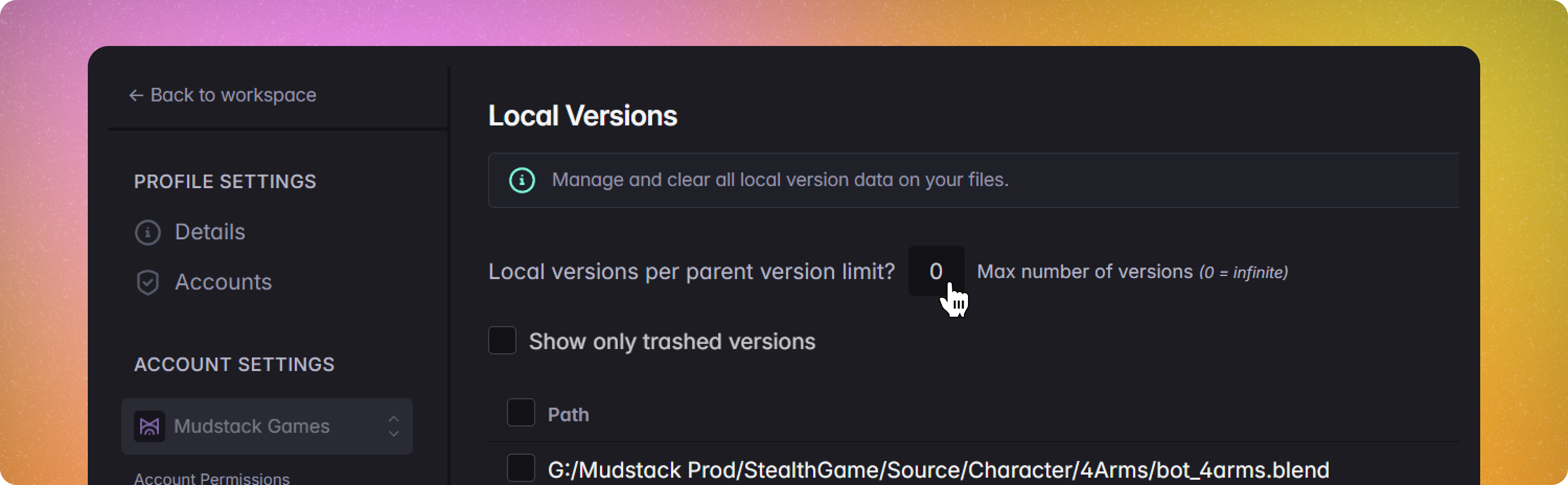 This option is accessible in `Settings → Local Versions`. If left at `0`, Mudstack will keep an unlimited number of local versions, which can cause disk space issues. You should adjust this based on your workflow and preferences.
# Disable Syncing on a file or folder
Click the `Disable Syncing` icon in the top right of a synced file/folder or Right click → `Disable Syncing`
To see more about managing sync, please read how to [disable auto syncing](/features/pull-and-sync#disable-auto-syncing).
# Cleanup old local versions
Go to [saving space with versions](/features/version-control#saving-space-with-versions) to remove old local versions and prevent accrual of old versions for future changes.
This option is accessible in `Settings → Local Versions`. If left at `0`, Mudstack will keep an unlimited number of local versions, which can cause disk space issues. You should adjust this based on your workflow and preferences.
# Disable Syncing on a file or folder
Click the `Disable Syncing` icon in the top right of a synced file/folder or Right click → `Disable Syncing`
To see more about managing sync, please read how to [disable auto syncing](/features/pull-and-sync#disable-auto-syncing).
# Cleanup old local versions
Go to [saving space with versions](/features/version-control#saving-space-with-versions) to remove old local versions and prevent accrual of old versions for future changes.