> ## Documentation Index
> Fetch the complete documentation index at: https://docs.mudstack.com/llms.txt
> Use this file to discover all available pages before exploring further.
# Pulling & Syncing Data
> Stay synced with your team's changes.
## Auto Pulling Changes
### Fetching changes
Mudstack automatically fetches and pulls changes from the cloud once per minute. When you see the fetch icon in the toolbar spin, this means that Mudstack is performing a fetch.
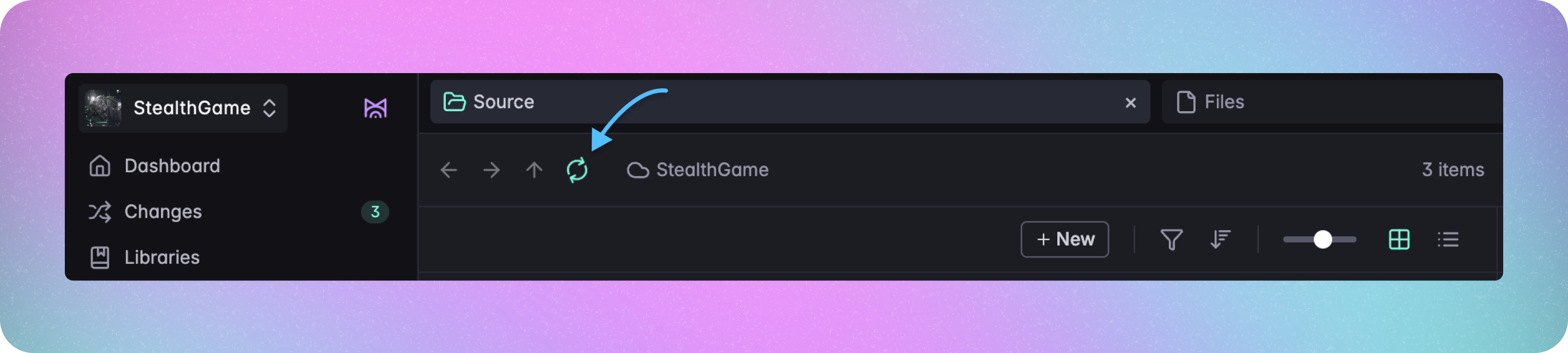 This ensures that you are seeing the latest data in app— files (including activity and new versions), folders, locations, tags, libraries, review and change requests etc.
### Pulling Changes
If there are changes available to pull, you will see the fetch icon in the top right spin, and Mudstack will automatically start pulling all the changes.
To see what data is getting pulled, you can click on `Changes` to look at the pull history.
The files themselves are not downloaded to your disk unless they are [auto sync enabled](/features/pull-and-sync#enable-auto-syncing).
## Enable Auto Syncing
If you want to stay in sync with a file, folder or library, you can now enable auto syncing for your selection. This will ensure that you always see the **latest** file version(s) in your local working directory.
Remember that enabling auto sync ***only automatically pulls*** changes from
the cloud. Changes you make locally still need to be [pushed](/features/push)
to the cloud, as this is not an automated process.
### File Auto Sync
To set up file auto sync, select the file(s), and click the cloud icon or right-click and choose `Enable File Syncing`.
See how to [download older file
versions](/features/version-control#downloading-a-version) if you need an
older version on disk.
### Folder Auto Sync
Similar to file syncing, you can stay in sync with folders by either selecting the folder(s), and clicking the download icon or right clicking and choosing `Enable File Syncing`. This will ensure that the contents of the selected folder(s) is always available to you on disk, including new files and folders added by others.
Folders with auto sync enabled will appear green in app compared to non-autosyncing folders, which appear purple.
If you create new folders inside an autosynced folder, they do not
automatically get autosynced for you. You will need to enable auto syncing for
these folders. When others pull your changes, *however*, they will get these
folders with auto sync enabled if they are also auto synced to the parent
folder.
### Library Auto Sync
To stay in sync with a [library](/features/libraries), enable auto sync either from the Libraries or library details view. This will ensure that files added to or removed from this library by anyone else will appear on your disk in their correct folder structure.
## Disable Auto Syncing
If you no longer need the latest content— file, folder or library— to be available to you locally, you can disable syncing for that selection.
Much like enabling syncing, you can also disable syncing:
* Click the cloud check icon on a file, or
* Select `Disable File Syncing` via the right-click menu.
Doing this will remove the file(s) from your working directory, freeing up disk space but will leave them untouched in the cloud. You can re-enable syncing at any point if you change your mind.
### Disable Folder or Library Auto Sync
There are some points to note about disabling file syncing for folders and libraries.
When you do this, you have the option to select `Disable File Syncing for all children` in the confirmation modal.
#### Disable File Syncing for All Children
Selecting this option will remove all the contained files from your disk *and* stop syncing changes made by others to the folder/library *but will leave* the empty parent folder on your disk.
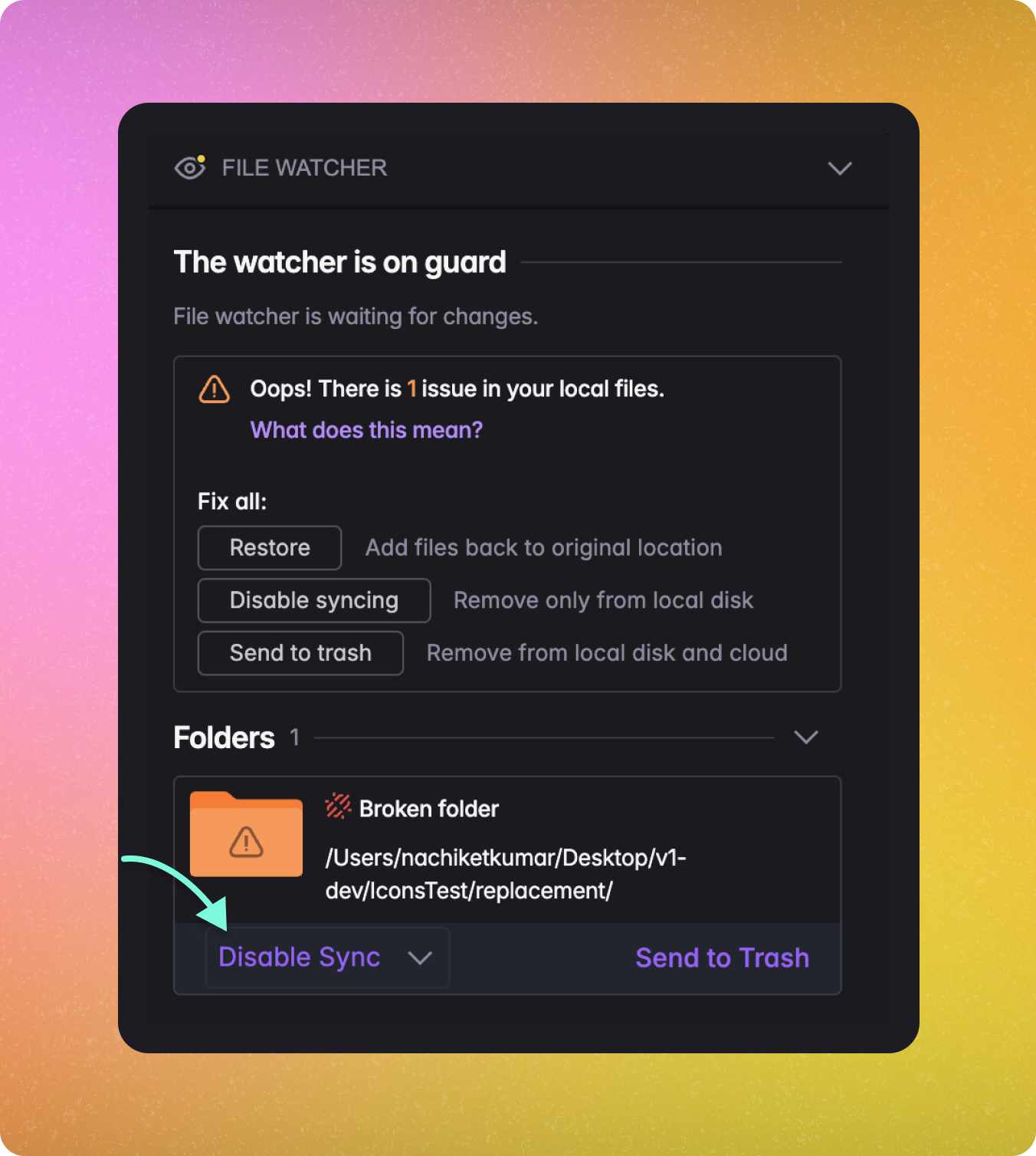
If you want to clean these empty folders up from your disk, you can delete
them from your filesystem (Explorer on Windows/Finder on Mac) and then open
the File Watcher (eye icon on bottom left of app). Finally, for the broken
`replacement` folder shown below, select the `Disable Sync` option.
This ensures that you are seeing the latest data in app— files (including activity and new versions), folders, locations, tags, libraries, review and change requests etc.
### Pulling Changes
If there are changes available to pull, you will see the fetch icon in the top right spin, and Mudstack will automatically start pulling all the changes.
To see what data is getting pulled, you can click on `Changes` to look at the pull history.
The files themselves are not downloaded to your disk unless they are [auto sync enabled](/features/pull-and-sync#enable-auto-syncing).
## Enable Auto Syncing
If you want to stay in sync with a file, folder or library, you can now enable auto syncing for your selection. This will ensure that you always see the **latest** file version(s) in your local working directory.
Remember that enabling auto sync ***only automatically pulls*** changes from
the cloud. Changes you make locally still need to be [pushed](/features/push)
to the cloud, as this is not an automated process.
### File Auto Sync
To set up file auto sync, select the file(s), and click the cloud icon or right-click and choose `Enable File Syncing`.
See how to [download older file
versions](/features/version-control#downloading-a-version) if you need an
older version on disk.
### Folder Auto Sync
Similar to file syncing, you can stay in sync with folders by either selecting the folder(s), and clicking the download icon or right clicking and choosing `Enable File Syncing`. This will ensure that the contents of the selected folder(s) is always available to you on disk, including new files and folders added by others.
Folders with auto sync enabled will appear green in app compared to non-autosyncing folders, which appear purple.
If you create new folders inside an autosynced folder, they do not
automatically get autosynced for you. You will need to enable auto syncing for
these folders. When others pull your changes, *however*, they will get these
folders with auto sync enabled if they are also auto synced to the parent
folder.
### Library Auto Sync
To stay in sync with a [library](/features/libraries), enable auto sync either from the Libraries or library details view. This will ensure that files added to or removed from this library by anyone else will appear on your disk in their correct folder structure.
## Disable Auto Syncing
If you no longer need the latest content— file, folder or library— to be available to you locally, you can disable syncing for that selection.
Much like enabling syncing, you can also disable syncing:
* Click the cloud check icon on a file, or
* Select `Disable File Syncing` via the right-click menu.
Doing this will remove the file(s) from your working directory, freeing up disk space but will leave them untouched in the cloud. You can re-enable syncing at any point if you change your mind.
### Disable Folder or Library Auto Sync
There are some points to note about disabling file syncing for folders and libraries.
When you do this, you have the option to select `Disable File Syncing for all children` in the confirmation modal.
#### Disable File Syncing for All Children
Selecting this option will remove all the contained files from your disk *and* stop syncing changes made by others to the folder/library *but will leave* the empty parent folder on your disk.
If you want to clean these empty folders up from your disk, you can delete
them from your filesystem (Explorer on Windows/Finder on Mac) and then open
the File Watcher (eye icon on bottom left of app). Finally, for the broken
`replacement` folder shown below, select the `Disable Sync` option.
 #### Don't Disable File Syncing for All Children
Leaving this option unchecked will stop syncing *new* changes made by others to the folder/library but leave the contents of the folder/library synced on your disk.
### Conflict Management
The only time Mudstack will not automatically download a change from the cloud is if you have made local changes to a file/tag/library, and someone else also made changes and pushed them to the cloud. In this case, you will see the option to `Fix issue` to [resolve the conflict](/features/conflicts).
#### Don't Disable File Syncing for All Children
Leaving this option unchecked will stop syncing *new* changes made by others to the folder/library but leave the contents of the folder/library synced on your disk.
### Conflict Management
The only time Mudstack will not automatically download a change from the cloud is if you have made local changes to a file/tag/library, and someone else also made changes and pushed them to the cloud. In this case, you will see the option to `Fix issue` to [resolve the conflict](/features/conflicts).