> ## Documentation Index
> Fetch the complete documentation index at: https://docs.mudstack.com/llms.txt
> Use this file to discover all available pages before exploring further.
# Reviews & Feedback
> How to request and provide feedback in Mudstack.
Speed of iteration is key to the progress of a team, and feedback is an integral part of iteration. Feedback, however, tends to get misplaced. It might live in easily lost Slack/Discord chats, be forgotten in Zoom calls that no-one took notes for, or get buried in issue tracking tools.
One thing, however, is certain: without Mudstack, feedback is always detached from the file itself.
## Reviews
A daily workflow for an art team is the act of leads and directors providing their feedback to their team of artists.
**Mudstack streamlines this process**:
1. Artists can request a review and tag the relevant reviewer at any time through Mudstack.
2. This creates a to-do in the leads Mudstack dashboard.
3. The lead can either approve or request changes on the file.
4. Change requests will show up as a to-do on the assigned artist's dashboard.
5. The artist can make the changes and upload a new version, and return to step 1.
### Request a Review
When a file has reached a stage where the artist is ready for a review, they can upload the file (or new version) to Mudstack and tag their lead(s) to provide their feedback and review.
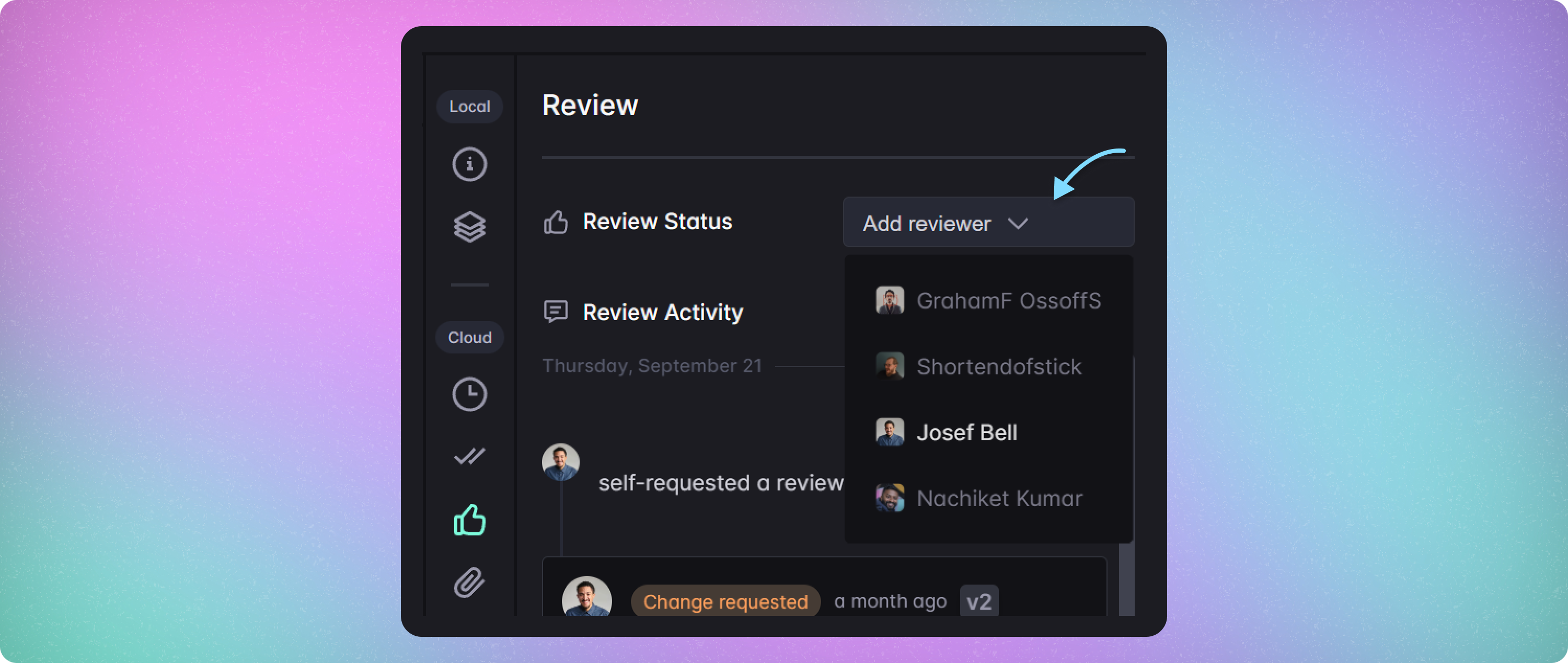 1. To do this, follow the steps to [push](/features/push) a file or version to the cloud.
2. Select the file and click on the `Reviews` tab.
3. Using the dropdown, select a reviewer. This list will show any team members that has the `Review` action selected on their team access rule.
4. This creates a `Review Request` to-do for the selected reviewer.
5. Once the reviewer has either `Approved` or `Requested Changes`, the artist will see a notification in their dashboard.
6. If the review result is a `Change Request`, that will show up as a to-do in the assigned artist's dashboard under the `Changes Requests` tab.
### Provide a Review
1. To do this, follow the steps to [push](/features/push) a file or version to the cloud.
2. Select the file and click on the `Reviews` tab.
3. Using the dropdown, select a reviewer. This list will show any team members that has the `Review` action selected on their team access rule.
4. This creates a `Review Request` to-do for the selected reviewer.
5. Once the reviewer has either `Approved` or `Requested Changes`, the artist will see a notification in their dashboard.
6. If the review result is a `Change Request`, that will show up as a to-do in the assigned artist's dashboard under the `Changes Requests` tab.
### Provide a Review
 1. When an artist requests a review from an art lead, the reviewer will see a `Review Request` to-do in their dashboard.
2. To act on the review request, click the file and then the `Reviews` tab. Here, you can leave your approval or change request. When leaving a `Change Request`, you can assign it to a specific artist for action.
3. When you select `Request Changes`, this creates a `Change Request` to-do for the assigned artist on their dashboard.
## Feedback History
When viewing a file in the Mudstack cloud, you can click on the `Timeline` section to see a complete history of that file, including all feedback.
All comments, approvals, change requests and lifecycle changes (new versions, tags etc) for the file are displayed here.
Learn how to set up real-time feedback notifications.
1. When an artist requests a review from an art lead, the reviewer will see a `Review Request` to-do in their dashboard.
2. To act on the review request, click the file and then the `Reviews` tab. Here, you can leave your approval or change request. When leaving a `Change Request`, you can assign it to a specific artist for action.
3. When you select `Request Changes`, this creates a `Change Request` to-do for the assigned artist on their dashboard.
## Feedback History
When viewing a file in the Mudstack cloud, you can click on the `Timeline` section to see a complete history of that file, including all feedback.
All comments, approvals, change requests and lifecycle changes (new versions, tags etc) for the file are displayed here.
Learn how to set up real-time feedback notifications.