> ## Documentation Index
> Fetch the complete documentation index at: https://docs.mudstack.com/llms.txt
> Use this file to discover all available pages before exploring further.
# Sync Overview
> Transferring content between the cloud and your computer.
Map your Mudstack cloud workspace to a local directory, and stay in sync with
cloud changes. Make changes locally, and effortlessly push them to the cloud
when you're ready.
Mudstack's sync feature is broken up into 2 parts:
1. [Pulling & Syncing](/features/pulling-and-syncing) data from the cloud to your local computer, and auto syncing files and folders, so that you're in sync with cloud data.
2. [Pushing](/features/push) changes from your computer up to the cloud, so cloud data can stay in sync with your changes.
## How Local and Cloud Workspaces Interact
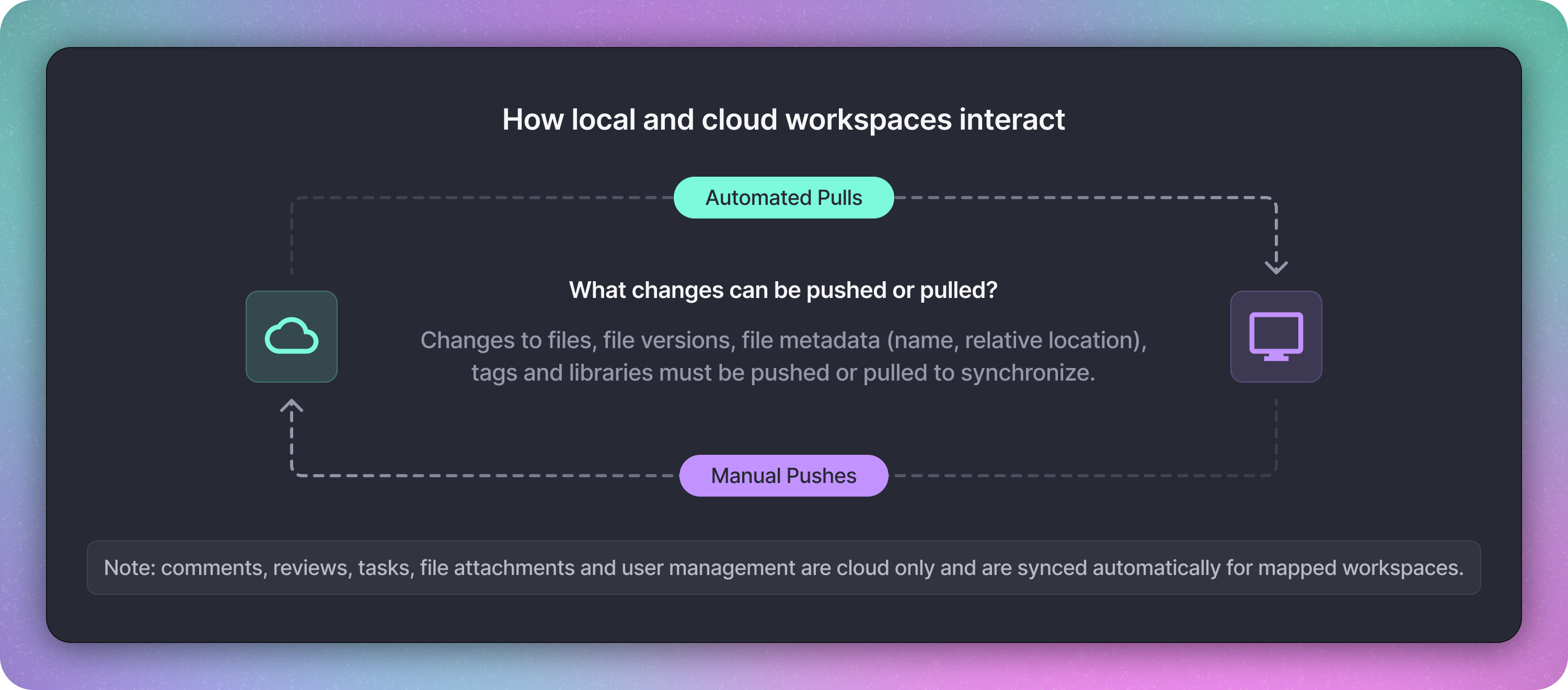 For a given user, workspaces in Mudstack can be of the following types:
1. **Cloud only workspace**: this is a workspace that is ***not*** [mapped](/features/sync-overview#mapping-a-workspace) to a local directory for the user. Indicated by a "Map workspace" banner in the Files view.
2. **Mapped workspace**: this is a workspace that exists both locally and in the cloud, and can be kept in sync.
Local and cloud workspaces interact by syncronizing files and data in both directions to ensure changes made on either platform are reflected across both, facilitating collaborative and accesible project management.
All changes to files, tags, libraries, and workspaces are done locally first, then explicitly pushed to the cloud when using the desktop app.
Cloud changes to content must be fetched and pulled to see those changes reflected in the desktop app.
When a workspace is mapped, downloads and uploads between a cloud workspace and the defined local directory go to the relative path of the set workspace locations.
The following data changes are immediate and **will not** show in the Sync
Table: Comments, Tasks, Reviews, File Activity, User management and
Attachments.
## Mapping a Workspace
In order to synchronize data between a cloud workspace and your computer, you must first connect, or `map` the cloud workspace to a designated location on your computer.
The workspace sidebar will also show a button alongside workspaces that haven't been mapped yet— whether they are local only or cloud only.
### Map an Existing Cloud Workspace
For a given user, workspaces in Mudstack can be of the following types:
1. **Cloud only workspace**: this is a workspace that is ***not*** [mapped](/features/sync-overview#mapping-a-workspace) to a local directory for the user. Indicated by a "Map workspace" banner in the Files view.
2. **Mapped workspace**: this is a workspace that exists both locally and in the cloud, and can be kept in sync.
Local and cloud workspaces interact by syncronizing files and data in both directions to ensure changes made on either platform are reflected across both, facilitating collaborative and accesible project management.
All changes to files, tags, libraries, and workspaces are done locally first, then explicitly pushed to the cloud when using the desktop app.
Cloud changes to content must be fetched and pulled to see those changes reflected in the desktop app.
When a workspace is mapped, downloads and uploads between a cloud workspace and the defined local directory go to the relative path of the set workspace locations.
The following data changes are immediate and **will not** show in the Sync
Table: Comments, Tasks, Reviews, File Activity, User management and
Attachments.
## Mapping a Workspace
In order to synchronize data between a cloud workspace and your computer, you must first connect, or `map` the cloud workspace to a designated location on your computer.
The workspace sidebar will also show a button alongside workspaces that haven't been mapped yet— whether they are local only or cloud only.
### Map an Existing Cloud Workspace
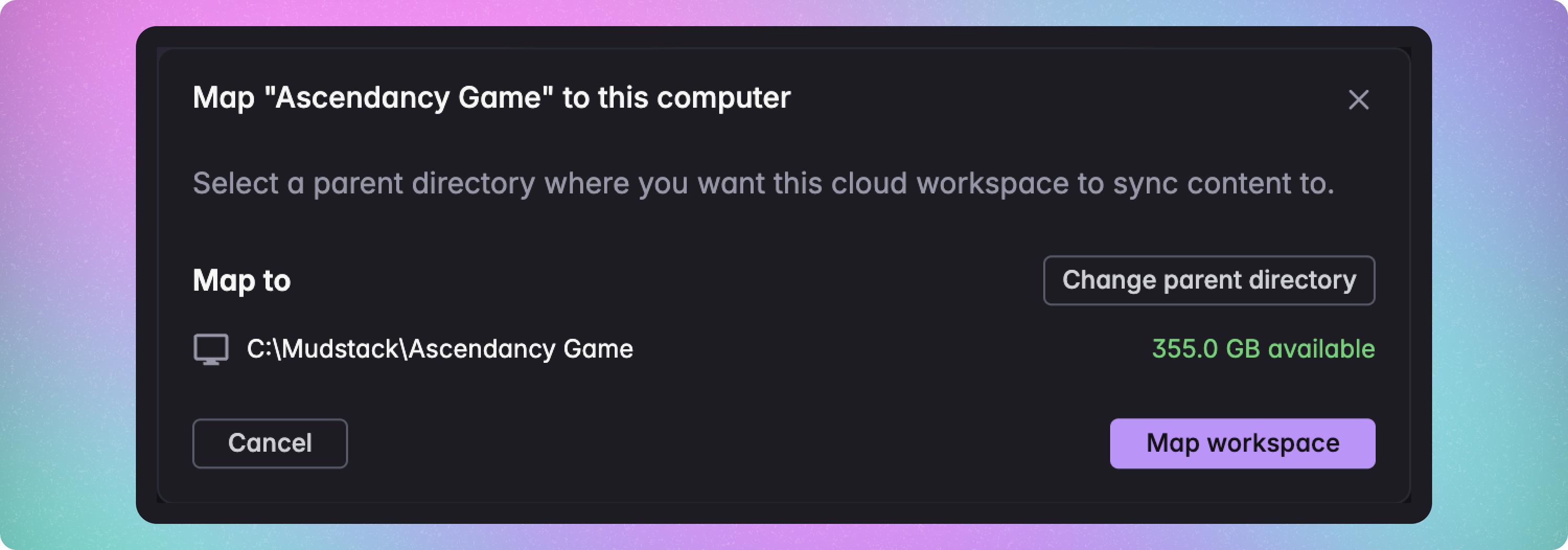 To map a cloud workspace, click the `Map workspace` button in the Files view on your desktop app.
You will see a modal appear. Click `Select Workspace Location` to choose the parent folder of the location where you want to create the local directory for the workspace.
### Unmap a Workspace
To map a cloud workspace, click the `Map workspace` button in the Files view on your desktop app.
You will see a modal appear. Click `Select Workspace Location` to choose the parent folder of the location where you want to create the local directory for the workspace.
### Unmap a Workspace
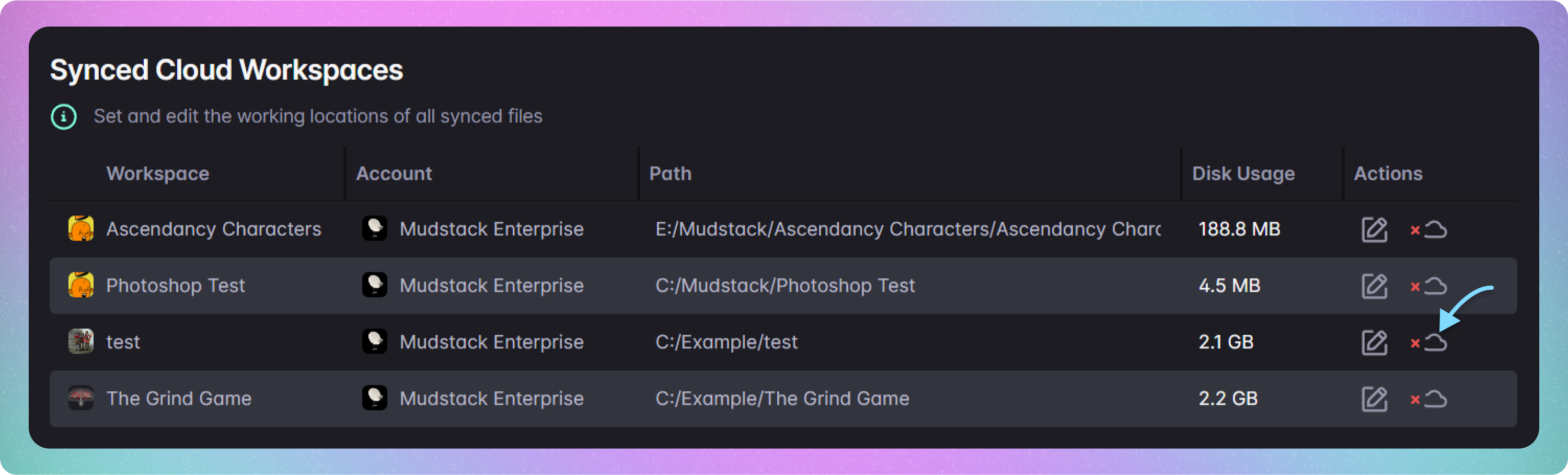 Go to `Settings > App Settings > Cloud Workspaces`. From here you can click the Unsync icon for a synced workspace and confirm that you want to stop syncing.
Any files that are already synced will remain but Mudstack will stop watching this directory for changes or creating new local versions for files in this directory.
## Data vs. File Syncing
When Mudstack `pulls` changes, it is:
1. Pulling updates made by others to metadata for the selected workspace— its libraries, tags, and files (names, locations and any changes to the current version).
2. Downloading only the files (and folders) that you have enabled auto syncing on.
See [pull](/features/pull-and-sync) for more information.
Go to `Settings > App Settings > Cloud Workspaces`. From here you can click the Unsync icon for a synced workspace and confirm that you want to stop syncing.
Any files that are already synced will remain but Mudstack will stop watching this directory for changes or creating new local versions for files in this directory.
## Data vs. File Syncing
When Mudstack `pulls` changes, it is:
1. Pulling updates made by others to metadata for the selected workspace— its libraries, tags, and files (names, locations and any changes to the current version).
2. Downloading only the files (and folders) that you have enabled auto syncing on.
See [pull](/features/pull-and-sync) for more information.