> ## Documentation Index
> Fetch the complete documentation index at: https://docs.mudstack.com/llms.txt
> Use this file to discover all available pages before exploring further.
# Tags
> Tag all your files and thank yourself later.
With only file names and folder hierarchies, finding files is very difficult unless you know the name and/or location of the file under question.
Tagging your files is a powerful way of helping your future self and team!
A central tagging system that works closely with your naming conventions makes [filtering](/features/searching#filters) down your search to quickly find what you need very easy.
## Managing Tags
To manage your tags, go to the `Tags` view by clicking the link in the top bar.
Only account admins and team members with the `Tag Management` action create tags for a workspace. Account admins and Workspace Admins can delete them.
Here, you can create, edit and manage all your workspace tags. You can also click a tag to see a filtered view of all files using that tag.
## Syncing Tags
While using the desktop app, any changes you make to a tag places it into the [push](/features/push) table to sync with your cloud workspace. If you assign a tag to a file, that file is also included in the push table for syncing.
When Mudstack [fetches](/features/fetch) any new tag changes from the cloud, these tags will be available to you locally.
## Auto Tagging
If your team has a well designed file naming convention, then you can use Mudstack's auto tagging to do some of the work.
Create your tag system **before uploading content** to Mudstack. As long as a tag matches a string in the filename separated by a `.`, `-`, `_` or ` `, the file will automatically get tagged on upload.
For example, if the tags `Red` and `Sword` already existed in the workspace, files named:
* `Red_sword-3.png`,
* `Red-Sword_final_final.fbx`,
* `red sword wip.ma`,
* `RED.SWORD.BIG.ztl`
etc, would all get automatically tagged with both `Red` and `Sword` on upload.
{" "}
Tags that are a part of a word will also be added. For example, if you have the
tag `Red` and a file `Reddish_sword_1.obj`, the tag `Red` will be applied to that
file.
## Managing Tags on Files
From any search view, you can select one or more files and add/remove tags to/from the selection:
1. Right click after selecting files and choose `Manage Tags`, or
2. Use the right sidebar to either remove tags from the selection or click the `Add tags` button to add new tags.
You can also add tags to a file from the file details view by clicking on the file info tab on the right sidebar.
Remember that removing a tag from a file does not impact the file itself other
than the removal of the tag association from its metadata!
## AI Tagging
This is an opt-in feature. If you want your team to use this, please contact [Mudstack support](mailto:support@mudstack.com?subject=Turn%20on%20AI%20Tagging%20for%20my%20Account) so we can turn this feature on for you.
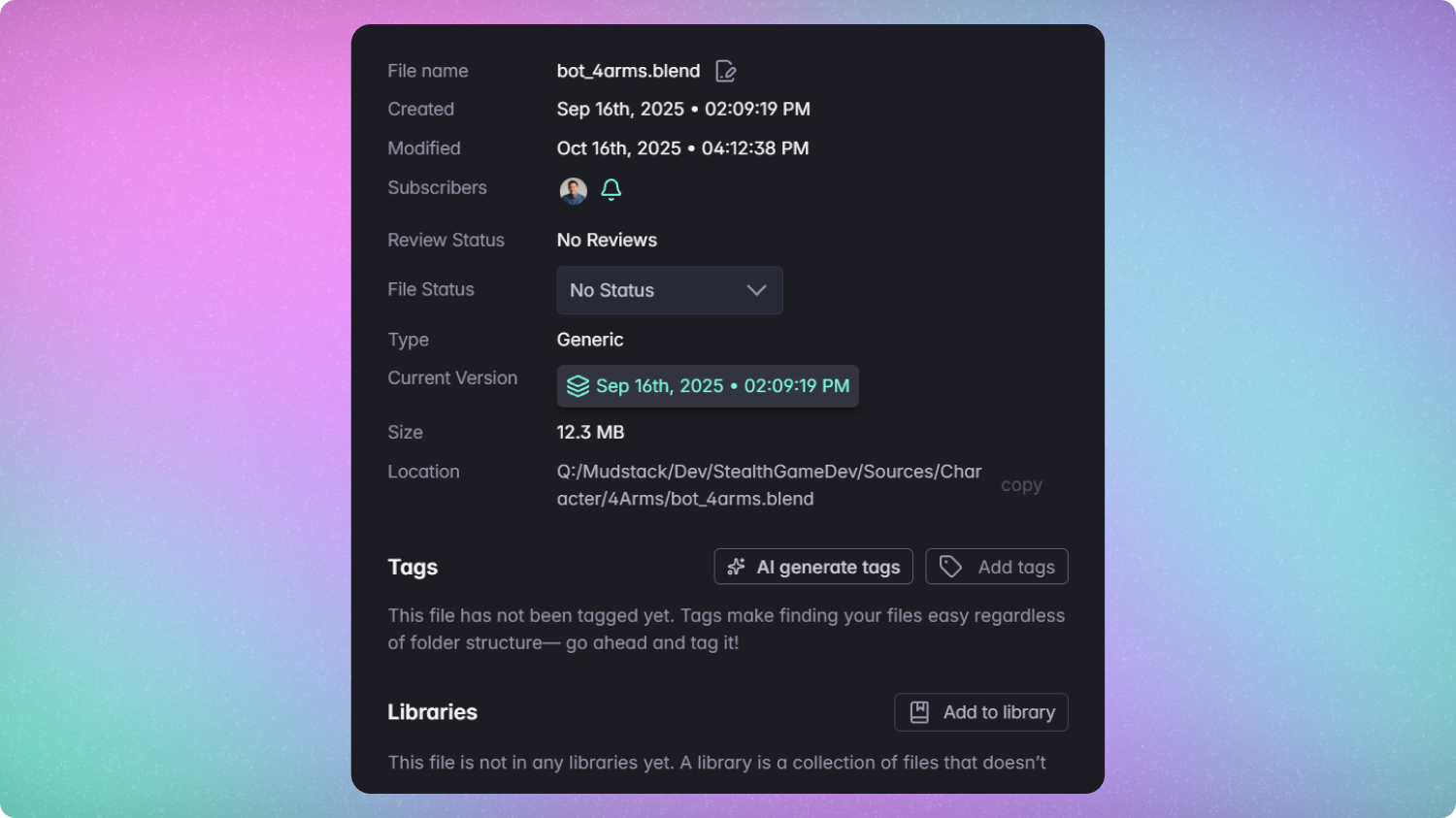 ### Generate Tag Suggestions
* AI tagging only runs if there is a thumbnail on the file. It will also take in metadata related to the file to best suggest tags.
* We use OpenAI to parse the image and generate the tags.
* We weight the tags by existing tags in your workspace.
* Once generated, you'll receive a list of suggestions you can apply to a file.
### Generate Tag Suggestions
* AI tagging only runs if there is a thumbnail on the file. It will also take in metadata related to the file to best suggest tags.
* We use OpenAI to parse the image and generate the tags.
* We weight the tags by existing tags in your workspace.
* Once generated, you'll receive a list of suggestions you can apply to a file.
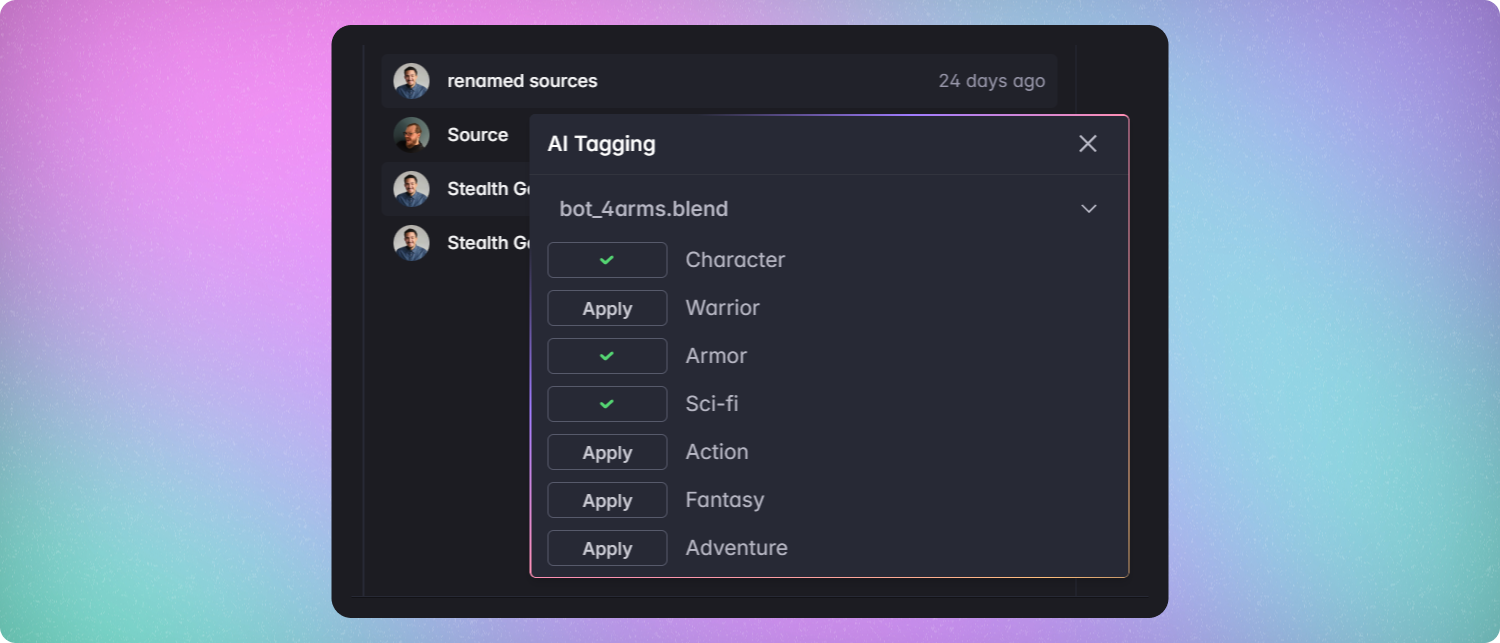 * Currently, this is done 1 file at a time. If you would like to tag multiple files at once using AI tagging, you can use our [MCP](/features/mcp) with an agent or the [API](/api-reference/getting-started) to cycle through multiple files at once.