> ## Documentation Index
> Fetch the complete documentation index at: https://docs.mudstack.com/llms.txt
> Use this file to discover all available pages before exploring further.
# Accounts & Workspaces
> Understand how your Mudstack account is structured.
## Account Types
When you log in to Mudstack, you have access to 1 or more accounts. An account can be either a single user account (Artist plan) or a multi-user account (all other plans).
What you can see and do within an account depends on the [plan](/getting-started/plans-pricing) that account is subscribed to and what your specific [permissions](/getting-started/permissions) have been set to.
### Single User Accounts
Every Mudstack user gets a free personal account on sign up. This account is subscribed to the free `Artist` plan. Artist plan accounts have a single user and do not allow collaborators.
### Multi User Accounts
To create a new multi user account, please contact our sales team at [sales@mudstack.com](mailto:sales@mudstack.com).
## Workspaces
Each account contains 1 or more workspaces. A workspace is a container that a specific file can belong to. An empty workspace is created by default for each new account.
At this point, you cannot transfer files between workspaces from the Mudstack
interface.
Workspaces are ideal for managing distinct projects or giving access to a secure area for internal or external teams. How you choose to use workspaces is up to you— if you need any advice, be sure to [get in touch with our team](/support/get-help).
Depending on the plan and your permissions on that account, a workspace may or may not be visible to you.
### Create a New Workspace From Scratch
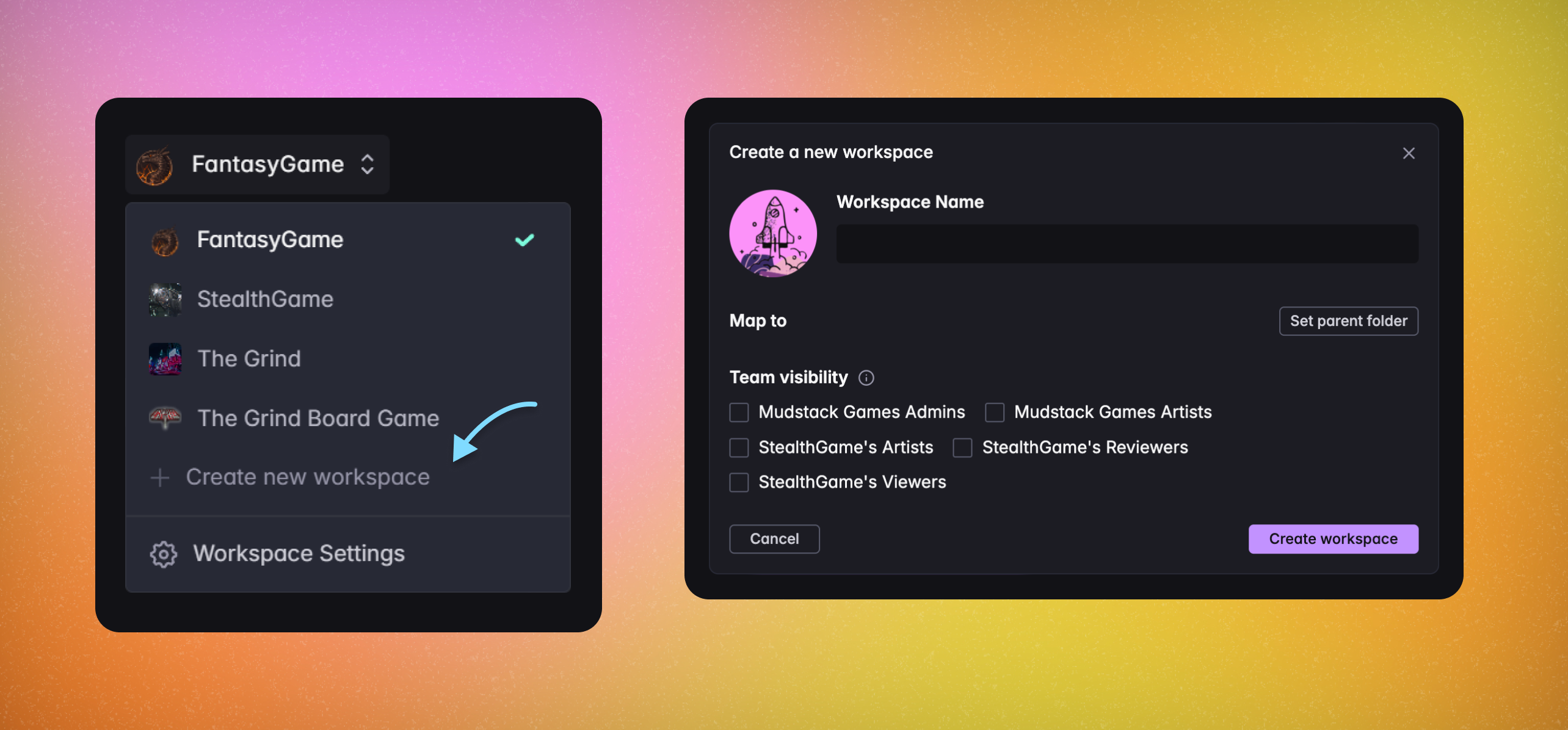 If you don't have an existing project or collection of files to import, you can create a new workspace by clicking the `New Workspace` button in the left sidebar. In the desktop app, you will need to map this workspace to a location on your machine.
### Convert an Existing Directory
If you have an existing directory of content you would like to bring into Mudstack, you can convert it to a Mudstack workspace.
Let's assume you have a `My New Project` directory located at `C:\My Files\My New Project`. To import this, follow these steps:
Give this workspace the exact same name as the directory you want to import,
e.g. `My New Project`.
Next, set the location by **selecting the parent directory** of the
directory you want to import. In this example, you should specify `My Files`
as the location.
Finally, allow Mudstack to finish indexing the contents of this directory.
Depending on the size of the directory, this could take a few minutes.
## Workspace Visibility
On the `Enterprise` plan, all workspaces are **private** by default. Users with the account role of `Member` must belong to a team with access to a workspace via a rule on the team. [Click here to learn more about the Teams update](\getting-started\permissions#managing-teams)
There are no public Mudstack workspaces— you must log in and have access to
the account *and* workspace in order to see it.
If you don't have an existing project or collection of files to import, you can create a new workspace by clicking the `New Workspace` button in the left sidebar. In the desktop app, you will need to map this workspace to a location on your machine.
### Convert an Existing Directory
If you have an existing directory of content you would like to bring into Mudstack, you can convert it to a Mudstack workspace.
Let's assume you have a `My New Project` directory located at `C:\My Files\My New Project`. To import this, follow these steps:
Give this workspace the exact same name as the directory you want to import,
e.g. `My New Project`.
Next, set the location by **selecting the parent directory** of the
directory you want to import. In this example, you should specify `My Files`
as the location.
Finally, allow Mudstack to finish indexing the contents of this directory.
Depending on the size of the directory, this could take a few minutes.
## Workspace Visibility
On the `Enterprise` plan, all workspaces are **private** by default. Users with the account role of `Member` must belong to a team with access to a workspace via a rule on the team. [Click here to learn more about the Teams update](\getting-started\permissions#managing-teams)
There are no public Mudstack workspaces— you must log in and have access to
the account *and* workspace in order to see it.