> ## Documentation Index
> Fetch the complete documentation index at: https://docs.mudstack.com/llms.txt
> Use this file to discover all available pages before exploring further.
# Permissions
> Protect your IP: manage access to content in Mudstack.
Looking for legacy permissions? [See our legacy documentation here.](/getting-started/permissions-legacy)
Protecting your IP is a big concern for any game studio. Mudstack is designed from the ground up with this in mind. Besides our secure architecture, the ability to manage permissions for users in your account is the main way you can control access to your content.
Mudstack account members have 3 roles: `Member`, `Admin`, and `Owner`. Depending on the plan the account is subscribed to, you can [manage workspace permissions with Teams](#managing-teams).
## Account Permissions
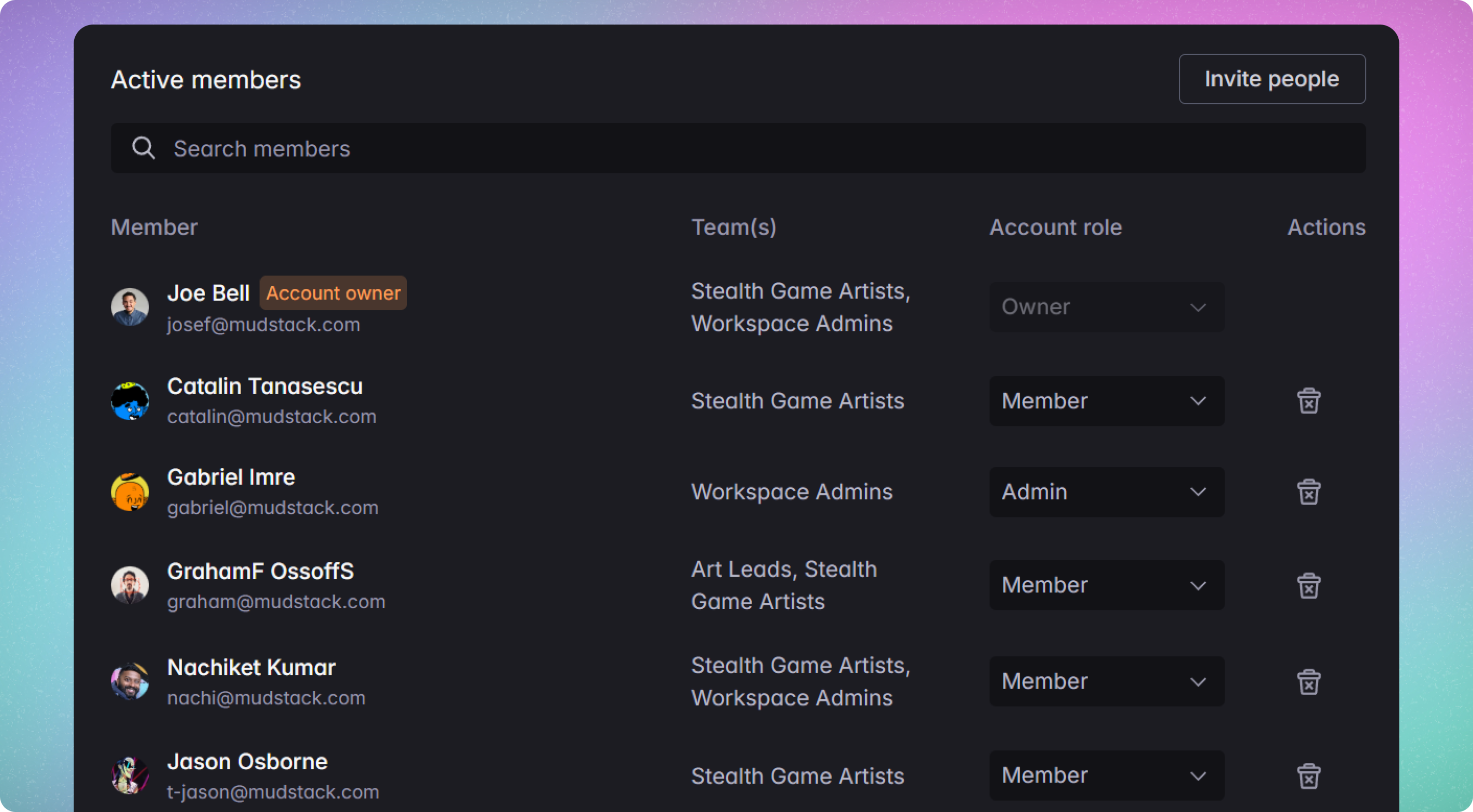 When a user joins an account, they can be granted a role at the account level and assigned to Teams for permissions to content within the account.
All users with access to a workspace can download and comment on files they can see.
### Account Roles
**Member**: this is the permission you should grant to **artists** on the team. This allows them to upload files and versions. They can select Team members with `Review` access to review their work when they are ready for feedback.
**Admin**: this allows the user to administer the account— change the account or workspace name/icon, invite new users to the account, create workspaces and manage teams.
**Owner**: By default, the account creator is the owner. After account creation, this permission can be shared with other users in the account. Only owners can change billing/plan details and delete the account. Owners will have full access to all content within their account.
Only account `Admins` and `Owners` can see the `Account members` settings in
order to invite users to the account and manage their permissions.
## Account Management
Set the account role to Member, Admin, and Owner
## Migrating to Role Based Permissions
### What happens to my current workspace members and their roles?
* Click the button `Enable team permissions` to migrate all workspace permissions to teams.
* Migrated teams are named after the workspace and roles selected for each user in the workspace. After migration, you can edit the teams
* Account roles will also be updated to match the original roles of Non-admins (marked `Member`), `Admin`, and `Owner`
All new accounts start with Teams enabled. We will auto-migrate existing teams 2 months after on launch Dec. 15th
## Managing Teams
When a user joins an account, they can be granted a role at the account level and assigned to Teams for permissions to content within the account.
All users with access to a workspace can download and comment on files they can see.
### Account Roles
**Member**: this is the permission you should grant to **artists** on the team. This allows them to upload files and versions. They can select Team members with `Review` access to review their work when they are ready for feedback.
**Admin**: this allows the user to administer the account— change the account or workspace name/icon, invite new users to the account, create workspaces and manage teams.
**Owner**: By default, the account creator is the owner. After account creation, this permission can be shared with other users in the account. Only owners can change billing/plan details and delete the account. Owners will have full access to all content within their account.
Only account `Admins` and `Owners` can see the `Account members` settings in
order to invite users to the account and manage their permissions.
## Account Management
Set the account role to Member, Admin, and Owner
## Migrating to Role Based Permissions
### What happens to my current workspace members and their roles?
* Click the button `Enable team permissions` to migrate all workspace permissions to teams.
* Migrated teams are named after the workspace and roles selected for each user in the workspace. After migration, you can edit the teams
* Account roles will also be updated to match the original roles of Non-admins (marked `Member`), `Admin`, and `Owner`
All new accounts start with Teams enabled. We will auto-migrate existing teams 2 months after on launch Dec. 15th
## Managing Teams
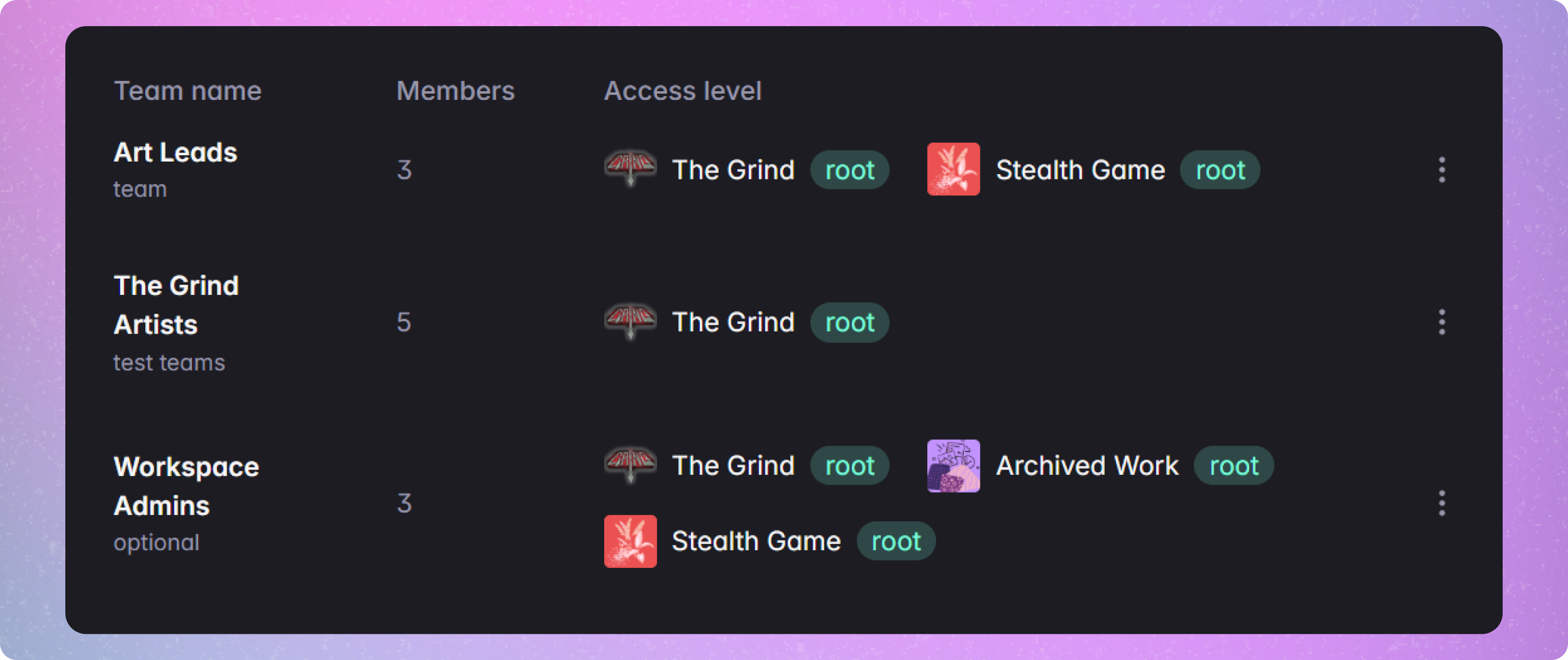 Teams allow your team to fine tune access to workspaces by grouping together similar members in a rules based permission system. You'll be able to manage a single team's access to multiple workspaces for fast user management
### Creating a Team
Teams must have a name, a member selected, and one access level rule
### Adding a Rule to a Team
* In the `Access level` column when editing or creating a team, click the `Add new rule` button.
* Select what the rule has access to, then select the actions that can be used within this rule.
#### Actions
* `Download` allows users to view and download content. In legacy, this was the `Viewer` role.
* `Upload` allows members to push changes to the defined locations in the rule.
* `Tag Management` allows for members to create new tags. Users must be an admin to delete tags.
* `Workspace Admin` allows members to manage designated workspaces.
* `Review` allows members to post `Change Request` and `Approval` comments on a file, and displays members as reviewers in the `Request a reviewer` dropdown on files.
If any rules are conflicting between teams, the members access is additive. Whatever rule gives the most access is what they can use.
### Setting Members on a Team
* Search and select the members you want on this team.
* When you are done, click the `Save` button in the top right to create the team.
### Editing a Team
* Select the option button on the right of a team in the Teams list, then select `Duplicate`. Confirm the duplication.
### Duplicate a Team
* Select the option button on the right of a team in the Teams list, then select `Duplicate`. Confirm the duplication.
### Removing a Team
* Select the option button on the right of a team in the Teams list, then select `Delete`. Confirm the deletion.
Teams allow your team to fine tune access to workspaces by grouping together similar members in a rules based permission system. You'll be able to manage a single team's access to multiple workspaces for fast user management
### Creating a Team
Teams must have a name, a member selected, and one access level rule
### Adding a Rule to a Team
* In the `Access level` column when editing or creating a team, click the `Add new rule` button.
* Select what the rule has access to, then select the actions that can be used within this rule.
#### Actions
* `Download` allows users to view and download content. In legacy, this was the `Viewer` role.
* `Upload` allows members to push changes to the defined locations in the rule.
* `Tag Management` allows for members to create new tags. Users must be an admin to delete tags.
* `Workspace Admin` allows members to manage designated workspaces.
* `Review` allows members to post `Change Request` and `Approval` comments on a file, and displays members as reviewers in the `Request a reviewer` dropdown on files.
If any rules are conflicting between teams, the members access is additive. Whatever rule gives the most access is what they can use.
### Setting Members on a Team
* Search and select the members you want on this team.
* When you are done, click the `Save` button in the top right to create the team.
### Editing a Team
* Select the option button on the right of a team in the Teams list, then select `Duplicate`. Confirm the duplication.
### Duplicate a Team
* Select the option button on the right of a team in the Teams list, then select `Duplicate`. Confirm the duplication.
### Removing a Team
* Select the option button on the right of a team in the Teams list, then select `Delete`. Confirm the deletion.