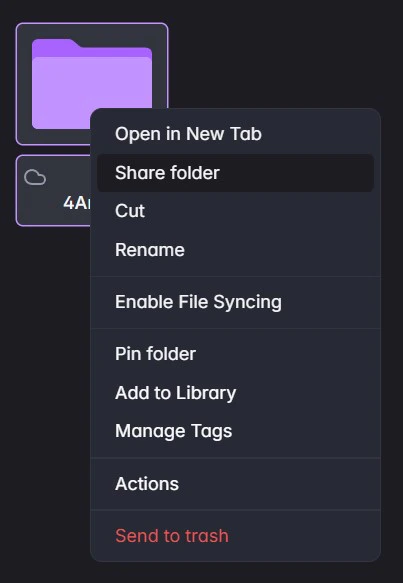
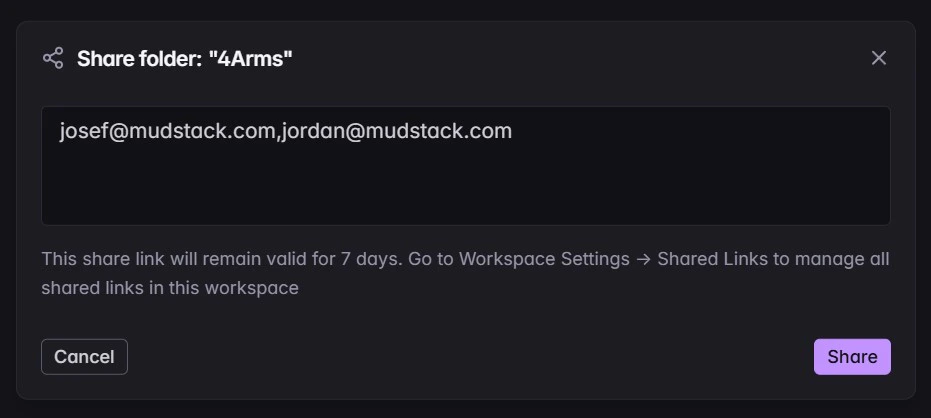
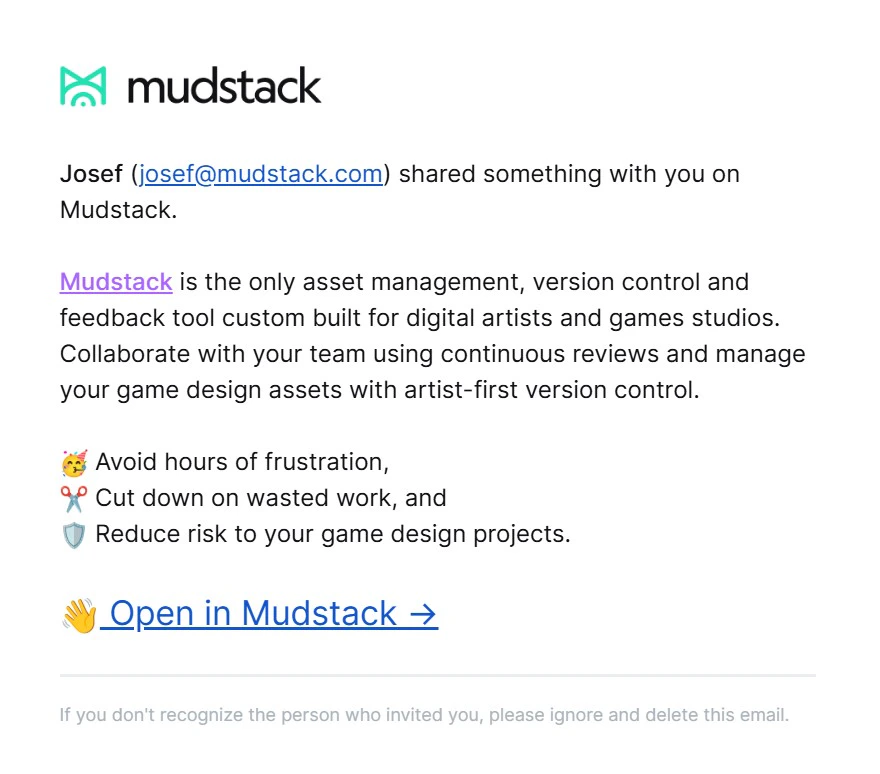
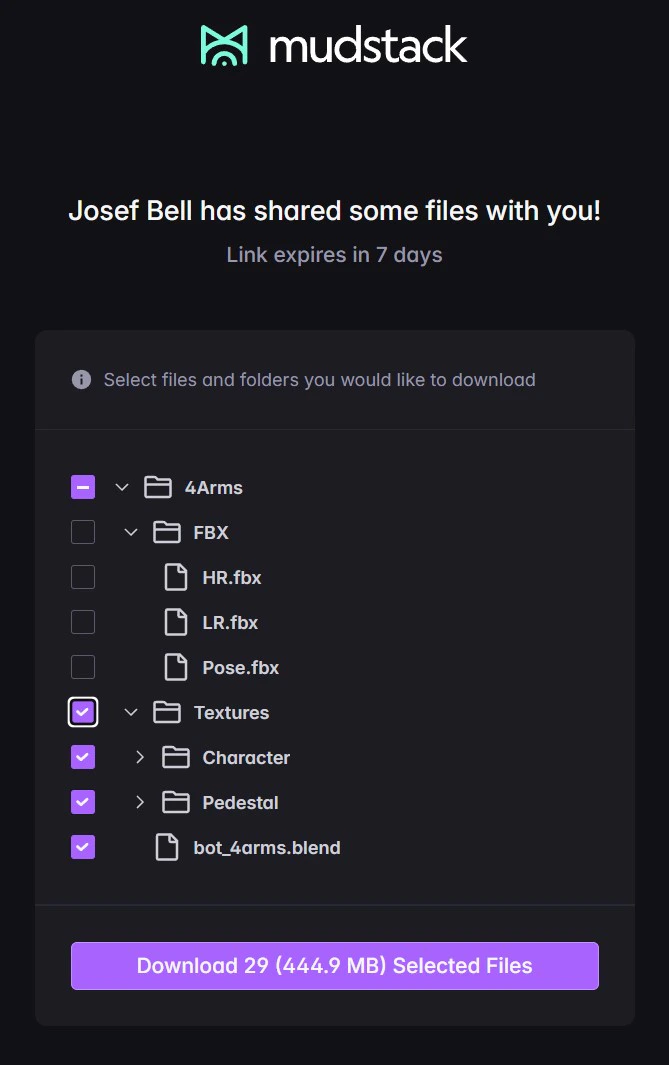
Mudstack allows you to easily share files and folders, both with collaborators inside your organization and with people outside your account. Here’s how it works:
If you want to share files, libraries, or history items with other users who already have access to your workspace:
File Links: You can find a file link by right-clicking on the file or from its sidebar details. Copy the URL and share it with another user in your workspace.
Library Links: Accessible from the Library details page; copy and share as needed.
Push History/Commit URLs: Right-click an item on the Push History page or open a Push History detail page to copy the URL.
How it works:
When another user clicks the link, they’ll be routed directly to the specific item or location in the Mudstack app (if they have access).
Only users with the appropriate permissions in that workspace will be able to view the content. Users without access will receive an error or be denied.
Sharing Files and Folders as Links Outside of Your Account
If you want to send files or folders to people who are not members of your Mudstack account, you can generate a secure, time-limited shared link.
You must be a workspace admin to share files or folders outside of your Mudstack account.
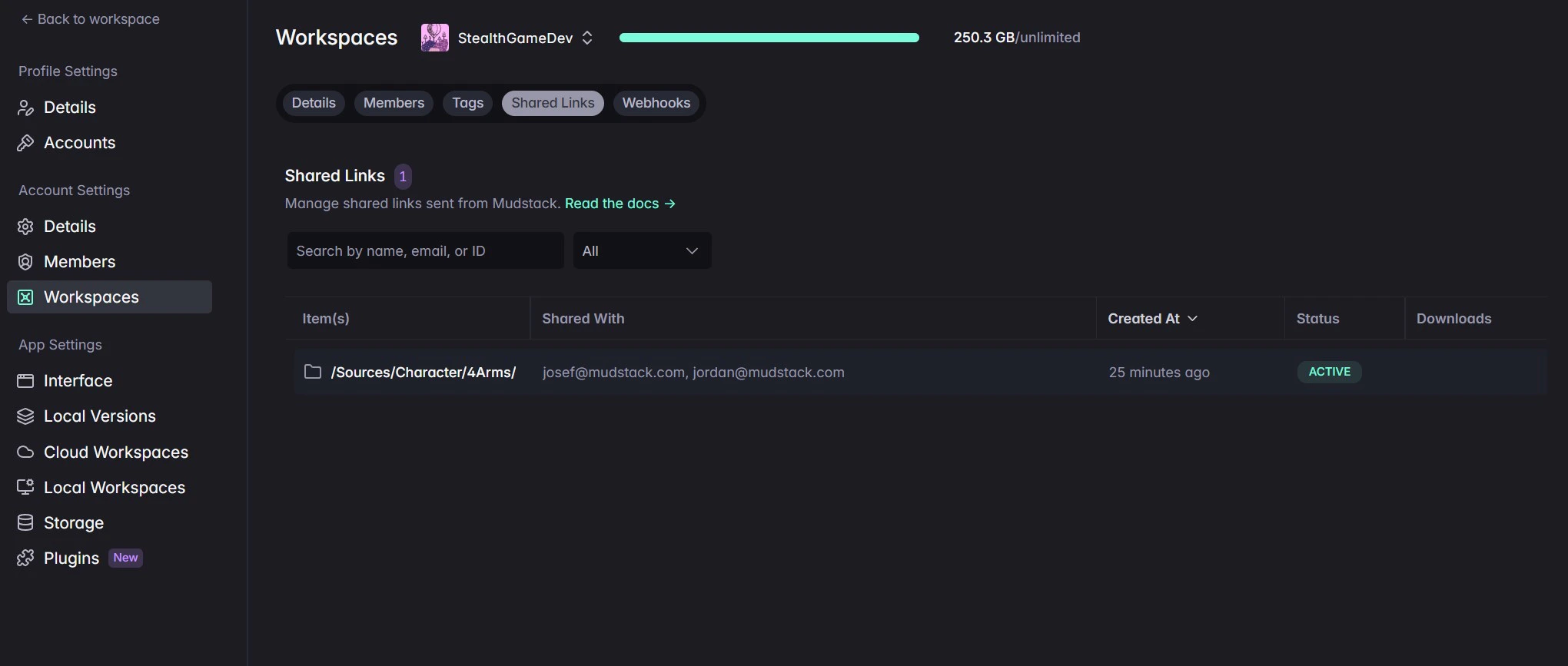
As an admin or user with permissions in Mudstack, you can manage all shared links for your workspace:
Navigate to Workspace Settings: Go to your Workspace Settings.
Open the Shared Links Tab: Here you can see all active shared links created by your team.
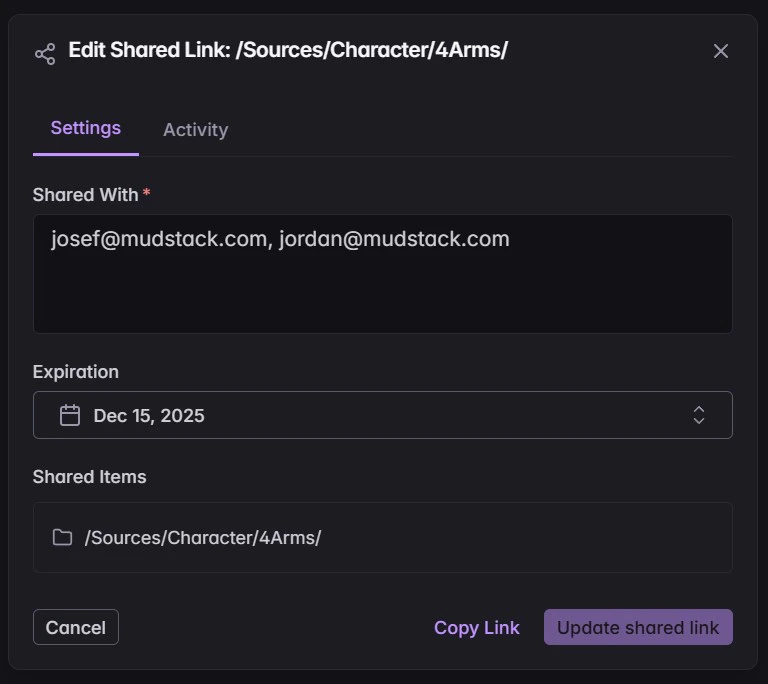
Edit Shared Links: Update the list of recipient emails, change the expiration date (extend or shorten), or disable a link as needed.
Copy or Delete Links: From the management table, you can copy the shared link URL or delete a shared link if you no longer want it to be accessible.
You can also view the activity log for each shared link: see who attempted to
access the link, when, and what files or folders were downloaded. This helps
you track download history and monitor sharing security.
For more information on managing permissions or troubleshooting issues with sharing, contact our support team.
Was this page helpful?
Assistant
Responses are generated using AI and may contain mistakes.